
Most pictures are tagged automatically, see this article on Image Tagging for more information. However if some photos were not tagged or if you would like to manually update photo types for any reason, this article will walk you through the steps to edit photo types in bulk. Designating photo types can help your ranking on some listing sites, and it helps to keep your guests informed about property details. The below will walk you through setting photo types in bulk in the VacayHome Connect client portal.
- Open any property overview by clicking on the property’s name in the property list.
- Click Photos in the left-hand navigation.
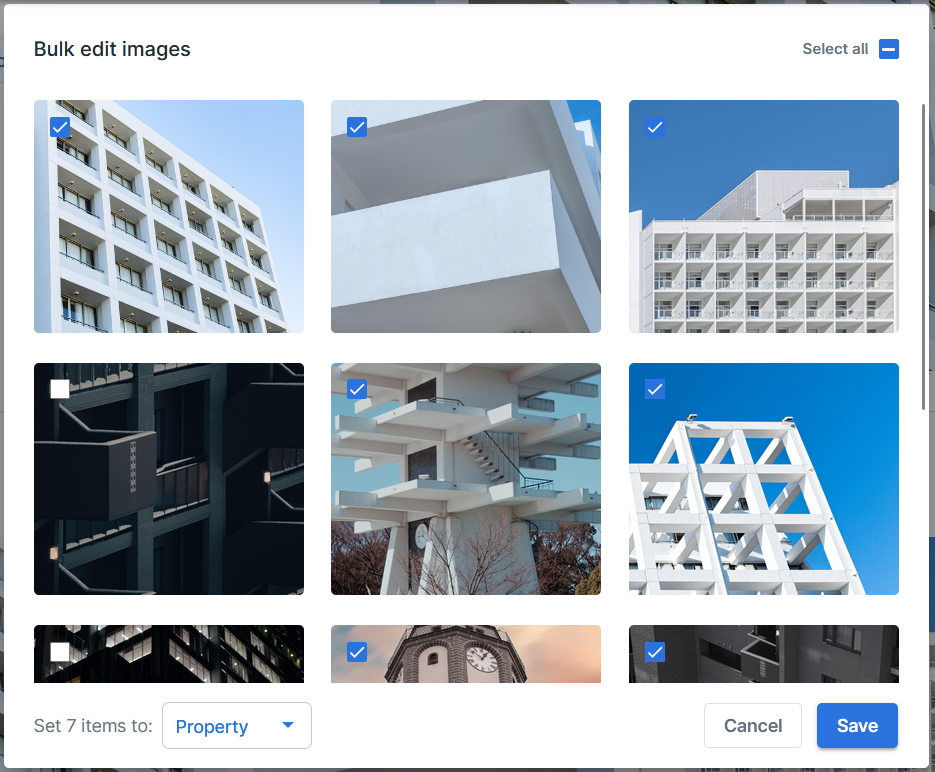
- Click the Bulk edit button on the far right, below the cover photo. This will open the Bulk edit window.
- Place checkmarks next to images that will be categorized together, for example place a checkmark next to all interior photos. Or you can use the Select all option in the upper right corner.
- Make a selection from the photo type dropdown menu. There are currently two options:
- Property: Use this for exterior pictures of the property or home.
- Room: Use this for interior photos of the property or home.
- Click the Save button.
Comments
0 comments
Please sign in to leave a comment.