
Previously you had the ability to see which complex a property was part of via the Property List, or by navigating to a specific complex and viewing the list of properties assigned to that complex. After the May 11, 2022 release, this information is also visible on the Property Overview page, without clicking back and forth between pages.
- Navigate to the Property List.
- Open a property’s overview by clicking on the property’s name.
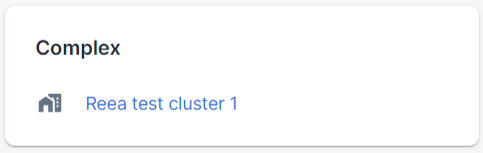
- You’ll see the complex name on the right-hand side just below the listing information.
Additionally, from this area, you can create a new complex using the property you are viewing as the hero or primary property of the cluster:
- Follow the steps above to access the property’s overview.
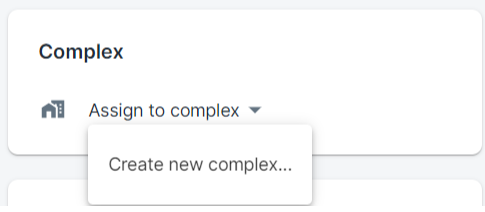
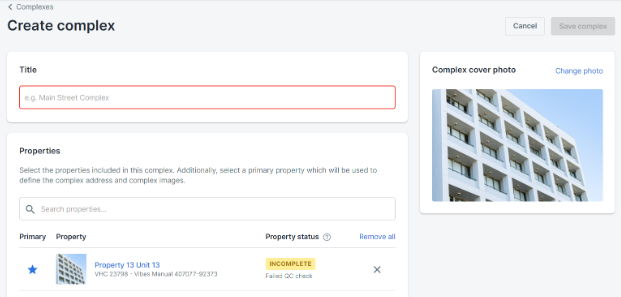
- In the Complex box, click on Assign to complex > Create new complex. This will take you to the Complex creation page. The current property will be automatically selected as the primary property for the cluster, and its primary photo will be selected as the cover photo for the complex.
- From here, follow the steps to create a new complex outlined in this article, Creating a Clustered Listing, to complete the setup.
Comments
0 comments
Please sign in to leave a comment.